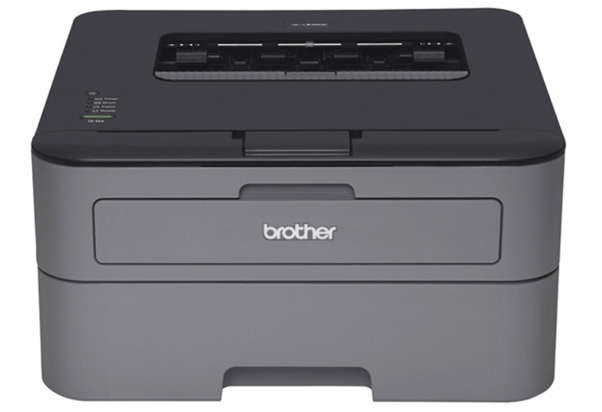
When it comes to the Brother HL L2370DW, a highly regarded laser printer known for its efficiency and reliability, maintaining it in excellent condition is crucial for ensuring its longevity and performance. A critical aspect of this maintenance involves changing the Brother HL-L2370DW toner cartridge.
- Preparing for Toner Replacement
- Step-by-Step Guide to Changing the Toner
- Step 1: Powering the Printer
- Step 2: Opening the Front Cover
- Step 3: Removing the Ce and Drum Unit
- Step 4: Releasing the Used Toner Cartridge
- Step 5: Preparing the New Toner Cartridge
- Step 6: Inserting the New Toner Cartridge
- Step 7: Cleaning the Corona Wire
- Step 8: Reinstalling the Assembly
- Step 9: Closing the Front Cover
- Additional Tips and Advice
- Conclusion
- Frequently Asked Questions (FAQs)
- How do I know which toner cartridge is compatible with my Brother HL L2370DW?
- Can I use third-party toner cartridges in my Brother HL L2370DW?
- What steps can I take to maintain high print quality after changing the toner?
- What should I do if I experience issues like vertical stripes on printouts after changing the toner?
- How often should the toner in the Brother HL L2370DW be replaced?
While the process of replacing the toner is relatively straightforward, it demands meticulous attention to detail to ensure it’s executed correctly and safely. This article offers an exhaustive guide on how to change the toner in your Brother HL L2370DW.
Preparing for Toner Replacement
Recognizing the Need for a New Toner
A clear indication that your Brother HL L2370DW printer needs a new toner cartridge is the ‘Toner Low’ warning. This alert typically appears on the printer’s display or your computer screen, signaling that it’s time to prepare for a toner change. Ignoring this warning can lead to diminished print quality and eventually, the printer stopping to print altogether.
Gathering Necessary Materials
Before beginning the toner replacement process, ensure you have the necessary materials at hand. This includes purchasing the correct toner cartridge for the Brother HL L2370DW model. It’s advisable to have these materials ready beforehand to avoid any disruptions during the process.

Safety Precautions
Safety is paramount when handling printer components. Ensure the printer is turned off and unplugged from the power source to prevent any electrical hazards. Also, handle the toner cartridge carefully to avoid spilling the toner powder, which can be messy and potentially harmful if inhaled.
Step-by-Step Guide to Changing the Toner
Step 1: Powering the Printer
Ensure your Brother HL L2370DW printer is turned on. This might seem counterintuitive, but it’s necessary for the replacement process. The printer needs to be in an active state to allow for the cartridge compartment to be accessible.
Step 2: Opening the Front Cover
Carefully open the front cover of the Brother HL L2370DW. This will expose the toner cartridge and drum unit. It’s important to proceed gently to avoid damaging any internal components.
Step 3: Removing the Ce and Drum Unit
Extract the toner cartridge and drum unit assembly from the printer. This step is crucial as the toner cartridge is housed within the drum unit. Handle this assembly with care to prevent any damage.
Step 4: Releasing the Used Toner Cartridge
Detach the used toner cartridge from the drum unit. There’s typically a lever or button that releases the cartridge. It’s important to remember this step, as installing a new cartridge without removing the old one will not resolve the ‘Toner Low’ warning.
Step 5: Preparing the New Toner Cartridge
Unpack your new toner cartridge, being careful not to touch the roller on the cartridge. This helps to avoid any print quality issues caused by fingerprints or debris on the roller.
Step 6: Inserting the New Toner Cartridge
Place the new toner cartridge into the drum unit. You should hear a click or snap indicating that the cartridge is securely in place. Ensuring proper installation is key to avoiding any future printing issues.
Step 7: Cleaning the Corona Wire
Inside the drum unit is a corona wire that needs to be cleaned each time you replace the toner cartridge. Slide the green tab back and forth several times to clean it. This step is vital for maintaining print quality.
Step 8: Reinstalling the Assembly
Insert the toner cartridge and drum unit assembly back into the printer. Make sure it is properly aligned and securely in place.
Step 9: Closing the Front Cover
Finally, close the front cover of your Brother HL L2370DW. Your printer should now recognize the new toner cartridge and be ready for use.
By following these steps carefully, you can successfully change the toner in your Brother HL L2370DW printer, ensuring continuous high-quality printing and the longevity of your printer. Remember to refer to the user manual for any specific instructions related to your printer model.
Additional Tips and Advice
Using genuine Brother cartridges is not only a recommendation for maintaining print quality but also for ensuring the longevity of your printer. Genuine cartridges are designed to work seamlessly with your Brother printer, reducing the risk of damage and print issues.
If you have an extra toner cartridge, store it in a cool, dry place, away from direct sunlight. Keep it in its original packaging until ready to use. This helps in preserving the quality of the toner.
Recycling used toner cartridges is an environmentally friendly practice. Brother offers recycling programs for used cartridges, helping to reduce waste and promote sustainability.
Conclusion
Changing the toner in your Brother HL L2370DW printer is a straightforward process that is essential for maintaining high-quality prints and the overall health of your printer. By following the steps outlined above and adhering to the recommended practices, you can ensure that your printer operates efficiently. Always refer to the user manual or Brother’s support website for specific guidance and troubleshooting. Remember, regular maintenance and using genuine supplies are key to your printer’s longevity and performance.
Frequently Asked Questions (FAQs)
How do I know which toner cartridge is compatible with my Brother HL L2370DW?
The Brother HL L2370DW printer typically uses the TN-730 or TN-760 toner cartridges. Always check the printer manual or the Brother website to confirm the correct model before purchasing.
Can I use third-party toner cartridges in my Brother HL L2370DW?
While third-party cartridges may be compatible, Brother strongly recommends using genuine Brother cartridges for optimal performance and to avoid potential damage to the printer. Using non-Brother cartridges could also void your warranty.
What steps can I take to maintain high print quality after changing the toner?
Regular maintenance, such as cleaning the corona wire and ensuring the toner is correctly installed, is crucial. Also, use high-quality paper and store the printer in a dust-free environment to maintain print quality.
What should I do if I experience issues like vertical stripes on printouts after changing the toner?
This is often due to an improperly cleaned corona wire or incorrectly installed toner cartridge. Reopen the printer, re-clean the corona wire, and check that the toner cartridge is securely in place. If issues persist, consult the Brother support site or manual for further troubleshooting steps.
How often should the toner in the Brother HL L2370DW be replaced?
The frequency of toner replacement depends on your printing volume and the type of documents printed. Keep an eye on the toner level indicator and replace the cartridge when the ‘Toner Low’ warning appears.